

PC gaming does not always require a new graphics card, more RAM, or an expensive hardware upgrade to feel smoother. Sometimes, the problem is caused by background applications, outdated drivers, unnecessary system processes, network congestion, or settings that prevent a computer from making the most of its existing hardware.
That is where an FPS Booster can be useful. Instead of manually checking dozens of Windows settings before every gaming session, an optimization tool can bring several performance-related tasks together in one place. A Game Booster can also provide a centralized way to optimize gaming performance, monitor system resources, and manage settings that may affect gameplay.
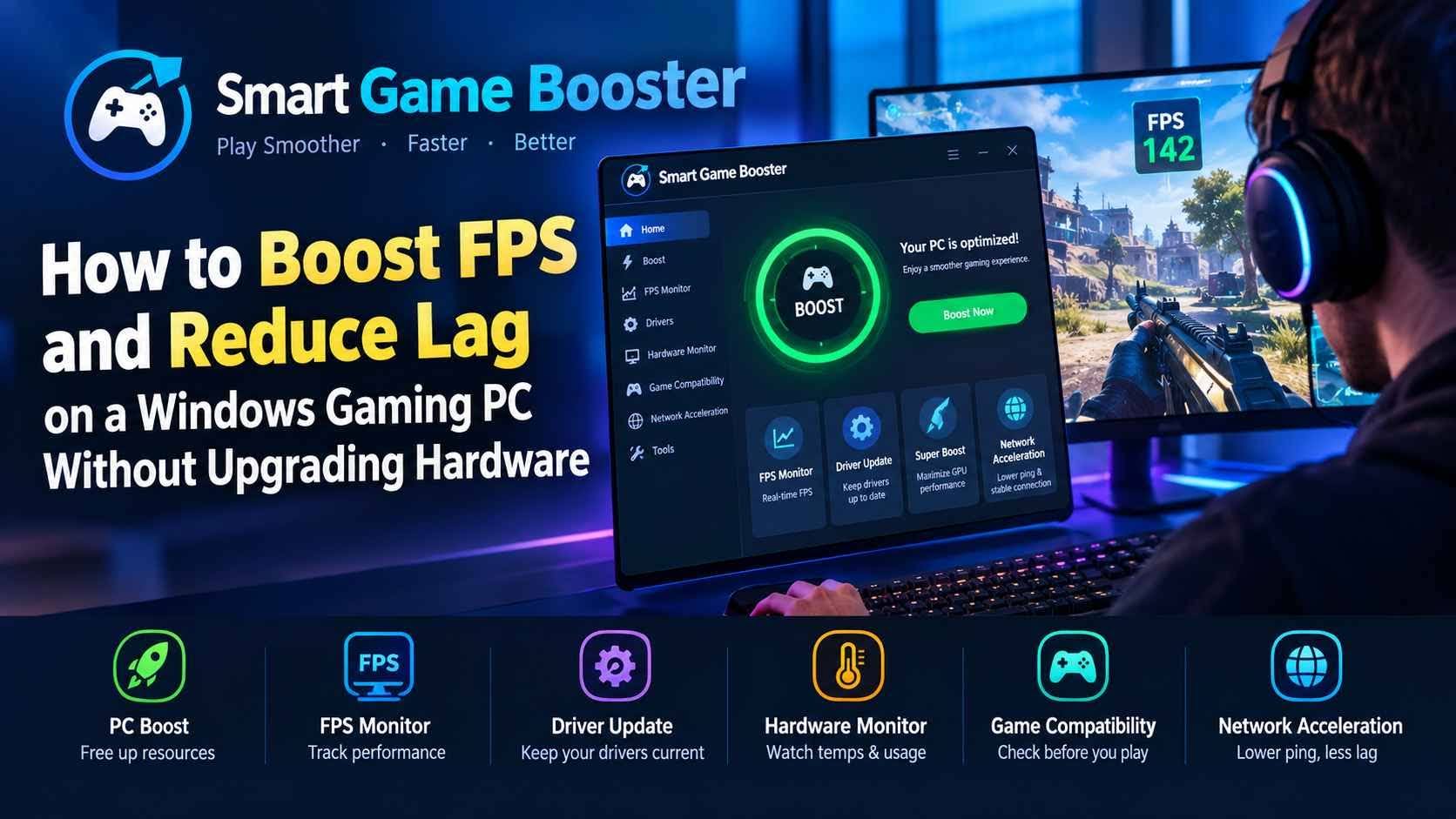
One option worth considering is Smart Game Booster from iTop. It combines PC optimization, FPS monitoring, driver management, hardware monitoring, game compatibility tools, and network acceleration into a single Windows application. The current version 6 also adds a network acceleration system with hundreds of gaming routes and an enhanced Super Boost feature.
Why Does FPS Drop While Gaming?
Frames per second, or FPS, measures how many frames your computer renders each second. Higher and more stable FPS generally makes gameplay appear smoother, but simply having powerful hardware does not guarantee consistent performance.
A game can experience frame drops when CPU or GPU resources are heavily occupied by other applications. Browser tabs, update services, launchers, recording software, and other background processes can consume memory and processing power.
Thermal throttling can also affect performance. When components become too hot, a system may reduce its operating speed to control temperatures. Storage limitations, outdated graphics drivers, and poorly optimized settings can create additional problems.
Network issues are another matter. A game running at a high frame rate can still feel unresponsive if ping is high or packet loss occurs. This is particularly noticeable in competitive multiplayer games where timing matters.
Because FPS and network latency have different causes, improving the overall gaming experience sometimes requires addressing both the PC and the internet connection.
What Is Smart Game Booster?
Smart Game Booster is Windows software designed to consolidate several gaming optimization functions into one application. According to its official documentation, it supports Windows 7, 8, 8.1, 10, and 11 and includes tools for boosting games, updating drivers, monitoring hardware, checking game compatibility, and diagnosing PC issues.
The appeal is convenience. Rather than manually close processes, check drivers, monitor temperatures, and adjust gaming-related settings every time you launch a title, Smart Game Booster provides centralized controls.
The software can automatically detect local games, while users can also add a game manually if it is not detected. After selecting a game, the interface provides options such as PC Boost and, where supported by the account and configuration, Network Acceleration.
How to Use Smart Game Booster to Improve Gaming Performance
Getting started is relatively straightforward.
1. Download and install the software
Download Smart Game Booster from the official product page and install it on a compatible Windows PC.
After installation, open the application. It will display games detected on your computer and provide access to its optimization features.
2. Select the game you want to optimize
Choose a game from the list. If your title is not automatically detected, Smart Game Booster allows you to add a local game manually.
This is useful if you have games installed in custom directories or through a launcher that the program does not immediately recognize.
3. Enable PC Boost
Smart Game Booster’s PC Boost is designed to free resources for the game by managing unnecessary background applications and processes.
The official FPS Booster page describes its one-click PC Boost as using CPU optimization, RAM cache cleanup, and background-process management to address potential performance bottlenecks.
The advantage is not that the software can magically turn entry-level hardware into a high-end gaming machine. Instead, the goal is to make better use of resources that are already available.
4. Monitor the results
After enabling optimization, use the built-in monitoring tools to see what is actually happening.
Smart Game Booster includes an in-game FPS monitor that can display FPS alongside information such as CPU and GPU usage, RAM usage, temperatures, and network ping.
This is particularly useful when troubleshooting. For example, if FPS drops coincide with high GPU temperatures, the issue may be thermal rather than a lack of memory. If FPS remains stable but ping suddenly increases, the problem may be network-related.
Smart Game Booster’s Super Boost Feature
For users who want additional graphics performance, Smart Game Booster includes a Super Boost feature.
The current product information says Super Boost can optimize GPU and VRAM performance through overclocking, with Basic, Max, and Customized modes available. The company advertises performance increases of up to 30% through this feature, although actual results depend heavily on the graphics card, cooling system, game, and configuration.
Overclocking should always be approached carefully. More aggressive settings can increase power consumption and temperatures, so monitoring hardware while testing changes is important.
For users who do not want to experiment with manual tuning, the basic PC optimization features can be used without relying on overclocking.
Can a Game Booster Reduce Lag and Ping?
FPS and ping are different measurements, and improving one does not automatically improve the other.
Smart Game Booster attempts to address network-related issues through its Network Acceleration feature. According to iTop, version 6 introduced more than 500 gaming servers or routes worldwide, with the purpose of providing alternative network paths for supported games.
This can be particularly relevant when the normal route between a player’s ISP and a game server is congested or inefficient.
However, network performance varies by location, ISP, game server, and time of day. A routing tool cannot guarantee the same improvement for every connection. The practical approach is to compare ping and packet loss before and after enabling network acceleration.
Built-In Driver Updates and PC Optimization
Graphics drivers play an important role in gaming compatibility and performance. Outdated drivers can sometimes cause graphical problems, crashes, or compatibility issues with newer games.
Smart Game Booster includes driver-update functionality for graphics and audio devices. Its official feature information says the software can help identify outdated drivers, while paid versions provide additional automatic driver-update functionality.
The application also includes tools for cleaning unnecessary files, adjusting system settings, and managing game files. For older mechanical hard drives, its game defragmentation feature may also be relevant. SSDs should generally be managed differently from traditional hard disks, so users should not assume that every optimization technique applies equally to every storage device.
Check Whether Your PC Can Run a Game
Another useful feature is Can I Run It.
Rather than buying or downloading a demanding game and discovering that the hardware is insufficient, users can check compatibility first. Smart Game Booster’s current information says the database includes more than 160,000 games, along with thousands of GPUs and CPUs.
This makes the tool useful beyond simply boosting games. It can also help users understand whether a performance problem is likely to be caused by hardware limitations.
Real-Time Hardware Monitoring Is Worth Using
Performance optimization is more effective when you can measure the result.
Smart Game Booster provides real-time monitoring for hardware conditions, including CPU and GPU usage and temperatures. Its FPS monitoring tools can also show performance information directly through an in-game overlay.
For example, suppose a game normally runs at 90 FPS but falls to 45 FPS after 20 minutes. If temperatures rise significantly at the same time, the information gives you a starting point for investigating cooling and thermal throttling.
Likewise, if CPU usage reaches very high levels while the GPU is underutilized, background processes or CPU limitations may be worth investigating.
Who Should Consider Using an FPS Booster for PC?
A tool like Smart Game Booster can be most useful for players who frequently switch between games and do not want to manually optimize Windows every time.
It may also appeal to users with older or mid-range gaming PCs. The software cannot replace insufficient hardware, but cleaning unnecessary processes, keeping drivers updated, and managing available resources can sometimes improve consistency.
Competitive multiplayer players may also appreciate the combination of FPS and network monitoring because both frame rate and latency can affect the gaming experience.
At the same time, users with powerful, well-maintained systems should not expect dramatic improvements in every game. If a computer is already operating close to its hardware limits, software optimization has less room to make a difference.
Is Smart Game Booster Worth Trying?
Smart Game Booster takes a broad approach to PC gaming optimization. Instead of focusing exclusively on FPS, it combines system optimization, hardware monitoring, driver tools, game compatibility checks, recording features, and network acceleration.
The basic version is available for free, while additional features are available through different account tiers. iTop currently lists Free, VIP, and SVIP options, with Network Acceleration and some advanced functionality tied to higher tiers.
The most sensible way to evaluate it is to measure your system before and after optimization. Record your average FPS, frame-time consistency, temperatures, and ping in the same game and under similar conditions. That gives you a more useful comparison than relying on a single advertised percentage.
Final Thoughts
Gaming performance problems can have many causes, from unnecessary background processes and outdated drivers to thermal limitations and inefficient network routing. Buying new hardware is not always the first step worth taking.
Smart Game Booster provides a centralized way to investigate and optimize several of these areas. Its PC Boost feature can manage background resources, its FPS monitor provides real-time performance information, its driver tools help with software maintenance, and its Network Acceleration feature is designed to address certain connection-related problems.
For gamers looking for a convenient Windows optimization utility, it is worth testing the free features first and measuring the results on the games they actually play. That approach makes it easier to determine whether the software improves their particular setup rather than assuming that every PC will experience the same performance increase.
