

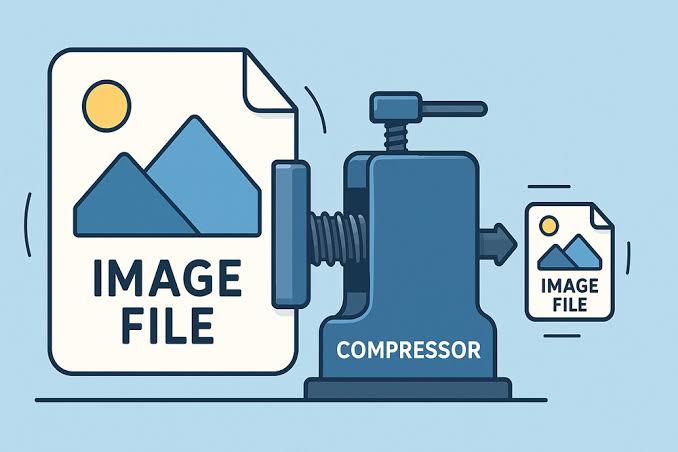
Images make websites more useful, attractive, and easier to understand, but they can also become one of the biggest sources of unnecessary page weight. Large image files take longer to download, consume more bandwidth, and can make pages feel slow, especially for visitors on mobile connections. Image compression reduces file size while preserving enough visual quality for the image’s purpose. By making compression part of the publishing process, website owners can improve loading efficiency, user experience, and overall site performance without giving up strong visuals.
What Is Image Compression?
Image compression is the process of reducing the amount of data needed to store and deliver an image. A smaller file requires fewer bytes to travel from a website’s server to a visitor’s browser. As a result, the browser can usually download and display the image more quickly.
There are two main forms of compression. Lossless compression reduces file size without removing image information required to reconstruct the original data. Lossy compression removes some information to achieve a greater reduction in file size. JPEG files commonly use lossy compression because small reductions in image detail can produce substantial savings while remaining difficult to notice at normal viewing sizes.
Compression should not be confused with resizing. Resizing changes an image’s pixel dimensions, such as reducing a 4000 × 3000 photo to 1200 × 900 pixels. Compression reduces the amount of data used to represent the image. In practice, resizing and compression often work best together.
Takeaway: Image compression reduces the data a browser must download. Resizing controls image dimensions, while compression controls how efficiently that image data is stored.
Why Do Large Images Slow Down a Website?
Every resource on a webpage needs to travel across a network before the browser can use it. HTML, CSS, JavaScript, fonts, videos, and images all contribute to the amount of data transferred. When several high-resolution photographs appear on the same page, images can account for a large part of that transfer.
Consider a simple example. A page contains five photos at 2 MB each. Those images alone represent about 10 MB of data. If careful resizing and compression reduce each file to 300 KB, the same five images require about 1.5 MB. The exact loading improvement will depend on caching, the visitor’s connection, the server, and other factors, but the browser now has significantly less image data to download.
The difference becomes particularly important on slower or unstable connections. A page that seems quick on a fast office network may feel much slower to someone using mobile data. Reducing unnecessary image bytes makes a website less dependent on ideal network conditions.
Takeaway: Smaller image files reduce the amount of data transferred, which can help pages load more efficiently across a wider range of network conditions.
How Does Image Compression Affect Core Web Vitals?
Google’s Core Web Vitals are metrics designed to measure important aspects of real-world page experience. Image optimization can influence these metrics, although compression is only one part of performance optimization.
One particularly relevant metric is Largest Contentful Paint (LCP). LCP measures how long it takes for the largest visible content element in the viewport to render. On many pages, that element is a hero image, banner, or large product photo. When an LCP image contains far more data than necessary, downloading it can contribute to a slower LCP.
Compression alone does not guarantee a good LCP score. Server response times, resource priorities, JavaScript, image dimensions, caching, and content delivery can also affect performance. Still, sending an appropriately sized and compressed image removes one common source of avoidable delay.
Another important metric is Cumulative Layout Shift (CLS). Compression does not directly solve layout shifts. Developers should provide image dimensions or reserve the correct display space so that content does not move unexpectedly when an image loads.
Takeaway: Image compression can support better loading performance, especially when a large image contributes to LCP, but it should be combined with correct dimensions and other performance practices.
Why Does Faster Image Delivery Improve User Experience?
Website performance is not only a technical issue. Visitors experience speed directly. They notice whether a page responds quickly, whether images appear promptly, and whether they can start reading without waiting for large visual elements.
Efficient images are particularly useful on image-heavy websites such as magazines, blogs, portfolios, travel sites, and online stores. These pages may contain thumbnails, banners, editorial photography, screenshots, and related-content images. Saving even a modest amount of data on every image can add up across an entire page.
Smaller files can also reduce bandwidth consumption for both the website and its visitors. That matters when users browse over limited mobile data or when a site serves a high volume of image requests. Compression therefore supports both performance and resource efficiency.
Takeaway: Efficient image delivery helps pages feel faster while reducing unnecessary bandwidth use for both visitors and website infrastructure.
Can Image Compression Help SEO?
Image compression does not act like a direct shortcut to higher search rankings. Its SEO value comes from supporting a technically efficient website and a better page experience.
Google recommends good Core Web Vitals as part of achieving a strong overall page experience. However, search performance depends on many factors, including content quality, relevance, crawlability, links, and technical implementation. Compressing images should therefore be viewed as one component of broader website optimization rather than a standalone ranking strategy.
Image SEO also involves more than file size. Descriptive file names, useful alternative text, appropriate dimensions, responsive delivery, and suitable formats can all contribute to better image implementation. Compression works best when it sits within this larger workflow.
For publishers, this is particularly relevant because editorial pages often accumulate images over time. Applying consistent optimization standards can prevent individual posts from becoming unnecessarily heavy as more visual content is added.
Takeaway: Compression supports SEO indirectly by improving technical efficiency and page experience, but it works best alongside high-quality content and broader technical SEO practices.
How Much Should You Compress a JPG?
There is no universal compression setting that works for every JPEG image. The right balance depends on what the image shows, where it appears, and how large visitors will see it.
A detailed photograph used across the full width of a page may require higher visual quality than a small thumbnail. Likewise, an image containing text, charts, or interface elements may show compression artifacts sooner than a natural photograph.
A practical workflow is to reduce quality gradually and inspect the result at its actual display size. Look closely at faces, text, gradients, fine patterns, and sharp edges. If visible artifacts become distracting, increase the quality slightly.
An online JPG compressor can make this process convenient when optimizing individual photographs before uploading them to a CMS. The important step is not simply achieving the smallest possible number. The goal is to remove unnecessary data while keeping the image clear enough for its intended use.
A useful checklist is:
- Resize the image to dimensions appropriate for the page.
- Remove unnecessary metadata when appropriate.
- Apply moderate compression.
- Compare the compressed file with the original.
- Check the image at its actual display size.
- Test the page on desktop and mobile.
- Measure the finished page rather than judging file size alone.
Takeaway: Good JPG compression balances file size and visual quality. Compress until additional savings would create noticeable or distracting degradation.
Should You Use JPEG, PNG, WebP, or AVIF?
Compression is only part of image optimization. Choosing a suitable file format can make an equally important difference.
JPEG remains useful for photographs and other images with complex colors and gradients. It has broad compatibility and gives publishers control over quality and file size.
PNG supports lossless compression and transparency. It can work well for certain graphics, but photographs stored as PNG files can become unnecessarily large.
WebP supports both lossy and lossless compression, as well as transparency. It is widely supported by modern browsers and can be a useful alternative for many web images.
AVIF is another modern format designed to provide efficient compression. It can achieve strong results in many cases, although the best choice still depends on the image, browser requirements, workflow, and encoding settings.
Google’s web.dev image performance guidance discusses image formats, responsive images, sizing, and other techniques that can reduce unnecessary image transfers.
Instead of assuming that one format always wins, test representative images. A photograph, logo, screenshot, and illustration can respond very differently to the same encoding approach.
Takeaway: Choose formats based on image content and website requirements. Compression works best when the underlying format also suits the type of image being delivered.
What Is the Best Image Optimization Workflow?
The easiest way to maintain good performance is to optimize images before they become a problem. A repeatable publishing workflow keeps oversized source files from reaching live pages.
Start by checking dimensions. A photo taken by a modern camera or phone may be several thousand pixels wide, while the content column may display it at only a fraction of that size. Uploading the full-resolution source can waste bandwidth unless the site has an automated image pipeline that generates appropriate variants.
Next, choose a suitable format and compression level. For an occasional JPEG, an online JPG compressor may be enough. Larger websites can automate compression and format conversion through their CMS, build process, image CDN, or media pipeline.
Responsive images add another layer of efficiency. HTML features such as srcset and sizes allow browsers to choose from different image dimensions. A small phone can then download a smaller version instead of receiving the same large image intended for a wide desktop screen.
Lazy loading can help with images farther down the page because the browser can delay fetching them until they approach the viewport. However, images that users see immediately, particularly an LCP image, should not be carelessly lazy-loaded because delaying the request may hurt perceived loading speed.
Finally, test the live page. Tools such as PageSpeed Insights and browser developer tools can help identify oversized images, transfer sizes, and loading behavior.
Takeaway: A strong workflow combines resizing, appropriate formats, compression, responsive images, selective lazy loading, and real-page performance testing.
What Image Compression Mistakes Should You Avoid?
One common mistake is compressing an image repeatedly. JPEG compression is lossy, so repeatedly opening, editing, and exporting an already compressed file can gradually reduce quality. Keep a high-quality original and generate optimized web copies from that source when possible.
Another mistake is focusing exclusively on compression percentage. A heavily compressed 4000-pixel-wide photo can still contain more data than a properly resized version. Dimensions and compression should be considered together.
Website owners should also avoid optimizing every image in exactly the same way. A thumbnail, logo, hero photograph, infographic, and screenshot serve different purposes. They may need different formats, dimensions, and quality settings.
Finally, do not rely only on visual inspection from a powerful desktop computer and fast connection. Test actual page performance and, where possible, examine how pages behave under slower network conditions.
Takeaway: Avoid repeated JPEG exports, oversized dimensions, one-size-fits-all settings, and performance decisions based only on a fast local connection.
How Can Publishers Build Image Optimization Into Their Routine?
For editorial websites, consistency matters more than occasional cleanup. A simple publishing standard can prevent image files from becoming unnecessarily large in the first place.
Editors can define recommended dimensions for common placements such as hero images, article images, and thumbnails. A CMS can then generate multiple sizes automatically. Automated compression can reduce repetitive manual work while keeping output consistent.
It also helps to audit older pages. Evergreen articles may have been published before current image optimization practices were introduced. Checking high-traffic pages for oversized images can reveal easy performance improvements without changing the editorial content.
Teams should periodically test representative templates rather than checking only the homepage. Article pages, category pages, galleries, and other layouts can have very different image-loading patterns.
Takeaway: Make image optimization a publishing standard, not a one-time task. Consistent dimensions, automated variants, and periodic audits help keep performance under control.
Frequently Asked Questions
Does compressing images make a website faster?
It can. Compression reduces image file size, which means the browser has less data to download. The actual speed improvement depends on the page, network, caching, server performance, and how images are implemented.
Takeaway: Smaller image transfers can improve loading efficiency, but total website speed depends on several factors.
Does JPG compression reduce image quality?
Lossy JPEG compression removes some image information, so quality can decrease. With sensible settings, however, the reduction may be difficult to notice at normal viewing sizes.
Takeaway: JPG compression trades some image data for smaller files, so the goal is to find a visually acceptable balance.
What image format is best for website performance?
There is no single best format for every image. JPEG, PNG, WebP, and AVIF have different strengths, and the best choice depends on image content, transparency needs, compatibility, and encoding settings.
Takeaway: Match the image format to the content and delivery requirements rather than applying one format everywhere.
Should every website image be compressed?
Images should generally be optimized for web delivery, but the method and compression level should vary. Logos, screenshots, photos, and illustrations can require different approaches.
Takeaway: Optimize every image intentionally, but do not use identical compression settings for every type of visual.
Is resizing the same as compressing an image?
No. Resizing changes pixel dimensions, while compression reduces the amount of data used to store the image. Using both techniques often produces better results than relying on either one alone.
Takeaway: Resizing controls dimensions, while compression controls data efficiency. Effective web optimization often uses both.
Why Should Image Compression Be Part of Every Website Performance Strategy?
Image compression matters because websites should not make visitors download data they do not need. Properly optimized images can reduce page weight, improve loading efficiency, lower bandwidth use, and support a smoother experience across different devices and connection speeds.
The best results come from treating compression as one part of a complete image strategy. Resize images appropriately, select suitable formats, deliver responsive variants, use lazy loading carefully, and measure real pages after publishing. These steps allow websites to keep useful, high-quality visuals while avoiding unnecessary performance costs.
